
How to install eSIM on your device
Step-by-step instructions for quick connectivity setup anywhere in the world.
01 Find your eSIM data
Check your email or personal account for the QR code.
02 Install before your trip
Install the profile in advance while you have a stable Wi-Fi connection.
03 Activate on arrival
Enable data roaming for your eSIM upon arrival at your destination.
Important note
A stable Wi-Fi connection is required for successful eSIM profile installation.
Step 1
Find your eSIM data
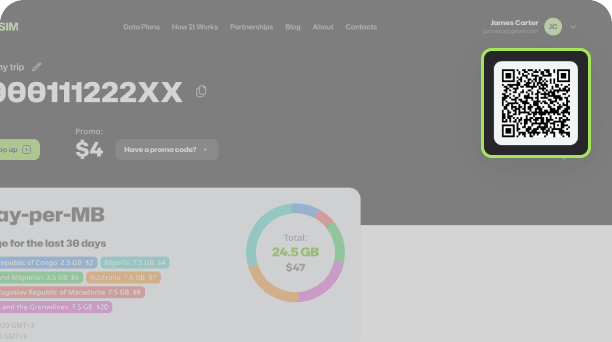
Find your eSIM data in your profile.
1
Find the QR code in your 5COM profile.
Step 2
Installation
Follow the instructions.
1
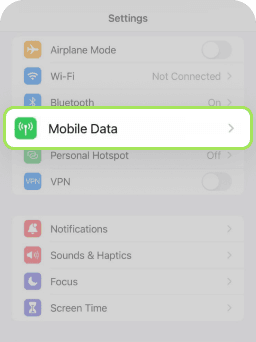
Open «Settings» and select «Cellular».
2
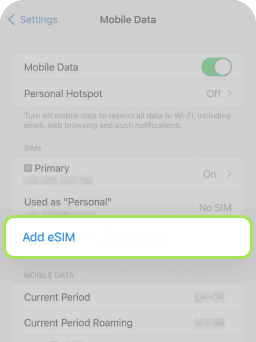
In «Cellular» settings, tap «Add eSIM».
3
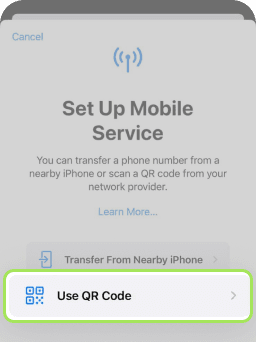
Tap «Use QR Code».
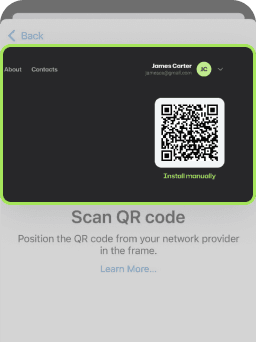
4
Scan the QR code received after purchase in your profile.
- Make sure you have a stable internet connection to download and install the eSIM.
- Note: you may need another device to display the QR code.
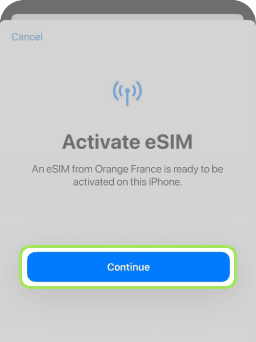
5
Tap «Continue».
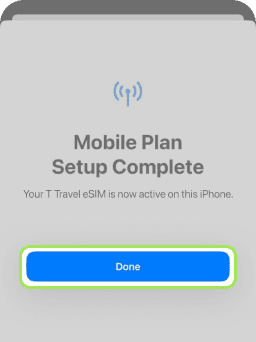
6
Tap «Done». Your 5COM eSIM is ready to use!
- Activate your plan following the activation instructions — best during your trip or upon arrival.
- Need help? Check our FAQ or contact support.
Step 3
Activation
Activate your eSIM within 30 days upon arrival.
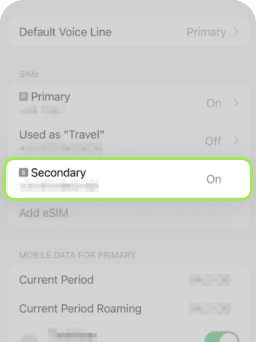
1
- Open «Settings» on your device.
- Tap «Cellular».
- In «Cellular» settings, find your eSIM under «SIMs».
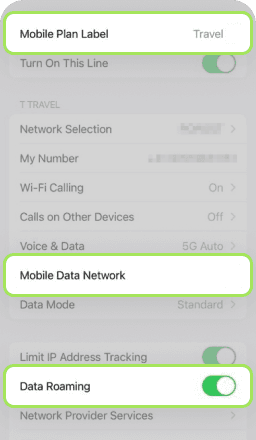
2
- Tap «Cellular Plan Label» to name your eSIM. We recommend «5COM Travel» or «T Travel».
- Tap «Cellular Data Network» to make sure the APN is configured correctly.
- Enable «Data Roaming».
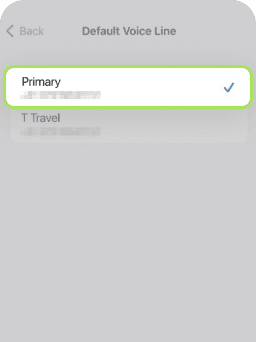
3
- Open «Settings» on your device.
- Tap «Default Voice Line».
- Keep your primary carrier SIM as the default line for calls and SMS.
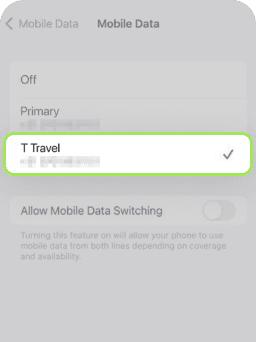
4
- Select «T Travel» as the default line for mobile data.
- Your 5COM eSIM is ready to connect to the network.
Upon arrival (Activation)
To start using the internet, don't forget to enable your new eSIM profile in settings.
Step 1: Enable eSIM
Go to Settings → Cellular, select the installed eSIM profile, and enable it.
Step 2: Enable Roaming
Make sure «Data Roaming» is enabled for this profile.
Having trouble installing?
Our support team is ready to help you 24/7.